
Supported streaming platforms
You can connect multiple streaming channels from different platforms to your VoxBot account. This is useful when you simulcast or move your community to another platform.
Platforms you can connect
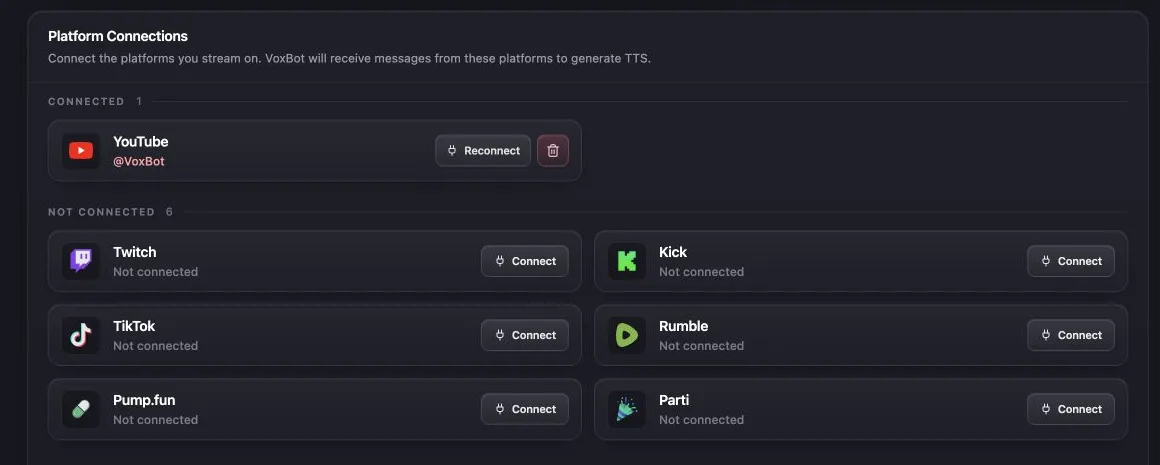
Section titled “Platforms you can connect”VoxBot currently supports Twitch, YouTube, Kick, TikTok, Rumble, Pump.fun, and Parti.
| Platform | How you connect | Viewer roles available in VoxBot |
|---|---|---|
| Twitch | Sign in with Twitch | VIPs, subscribers, and moderators |
| YouTube | Sign in with Google | Verified users, members or sponsors, and moderators |
| Kick | Sign in with Kick | VIPs, subscribers, and moderators |
| TikTok | Add a verification code to your bio, then enter your username or URL | Subscribers and moderators |
| Rumble | Paste your Rumble Livestream API URL | Roles provided by Rumble chat badges |
| Pump.fun | Add a verification code to the coin description, then paste the coin URL | Limited role support |
| Parti | Send a verification command to VoxBot, then enter your username or URL | Limited role support |
Role names are not identical on every platform. For example, a YouTube member uses the Sub permission in VoxBot. A verified YouTube user uses the VIP permission.
Connect another channel
Section titled “Connect another channel”- If you manage more than one VoxBot account, select the correct one from the account menu in the top-left corner.
- Open Account.
- Find the platform under the Not Connected section.
- Select Connect.
- Complete the sign-in or verification steps for that platform.
- Return to Account and confirm that the channel appears under the Connected section.
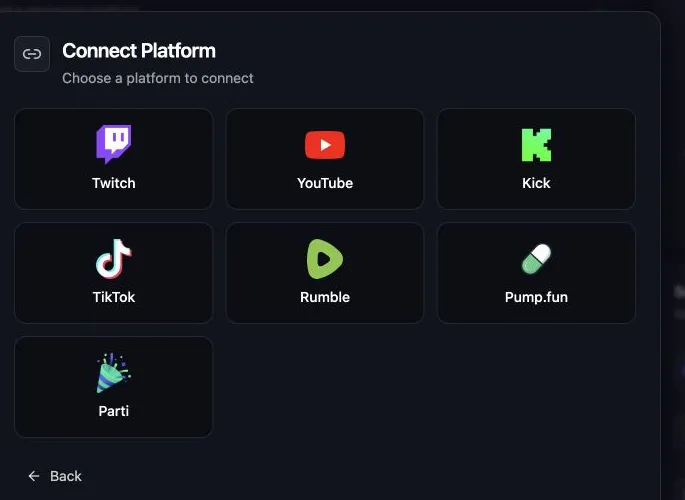
During your first setup, select Link New Account, then choose a platform in the Connect Platform window.
Use one of these setup guides for the complete steps:
Guides for Kick, TikTok, Rumble, Pump.fun, and Parti are next in the documentation plan. The dashboard also shows the connection steps for each platform.
How connected channels share settings
Section titled “How connected channels share settings”Your VoxBot account can have one connected channel from each supported platform. For example, you can connect one Twitch channel, one YouTube channel, and one Kick channel to the same VoxBot account.
A streaming channel cannot be connected to two VoxBot accounts at the same time. If you see This account is already connected to another VoxBot user., switch to the VoxBot account where the channel is already connected, or remove the old connection first.
Connecting another channel does not replace your commands, voices, moderation, or Playback Settings. The same settings apply to chat from every channel connected to that VoxBot account.
Test a channel connection
Section titled “Test a channel connection”Twitch and Kick chat stay available while the channel is offline, so you can send a test command before you go live. If the platform only provides chat during a stream, start the stream and make sure it is not private. YouTube must be live and public, with live chat enabled.
Send a controlled !tts test in the connected channel’s chat, then open Message History.
- The message appears with TTS: The channel connection and TTS configuration are working.
- The message appears without TTS: Check the command, Status, permissions, TTS Enabled, and moderation settings.
- The message does not appear: Check that the correct channel is under Connected. If the platform needs an active chat, also check the live status and stream visibility.
Follow Send your first TTS message to add the browser source and complete the audio test.
Can I connect more than one streaming platform to VoxBot?
Yes. You can connect one channel from each supported platform to your VoxBot account. The same commands and playback settings can then work with chat from several platforms.
Can I connect the same Twitch or YouTube channel to two VoxBot accounts?
No. A streaming channel can be connected to only one VoxBot account at a time. Remove the existing connection before you connect it to another account.
Does my channel need to be live for VoxBot to receive chat?
Not always. Twitch and Kick chat can receive VoxBot commands while the channel is offline. YouTube and other platforms without an always-active chat need a live stream before you test.
Does connecting a channel add a visible bot to my chat?
No. Viewers continue to send commands in the platform’s normal chat. Connecting the channel lets VoxBot receive those messages.
Need help with a connection?
Section titled “Need help with a connection?”Email support@vox.bot or join the VoxBot Discord. Include the platform name and what Message History shows.