
Connect Twitch to VoxBot
Connecting your Twitch channel lets viewers use VoxBot commands in the channel’s normal chat. VoxBot can also recognize VIP, subscriber, and moderator badges.
Connect your Twitch channel
Section titled “Connect your Twitch channel”- If you manage more than one VoxBot account, select the correct one from the account menu in the top-left corner.
- Open Account.
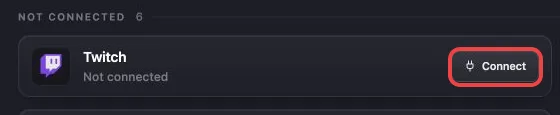
- Find Twitch under the Not Connected section.
- Select Connect.
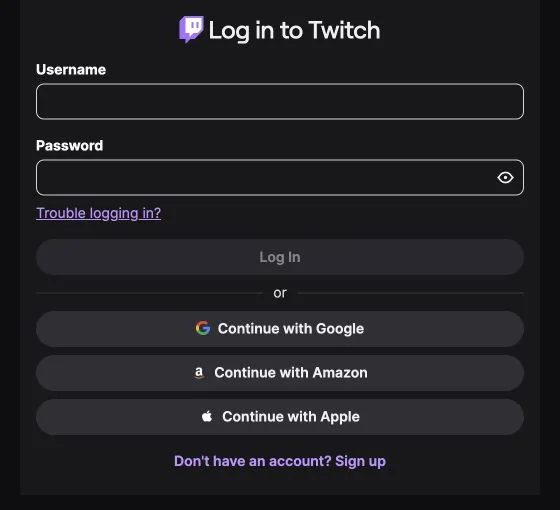
- Sign in to Twitch with the broadcaster login for the channel you want to connect.
- Review the access request on Twitch.
- Approve the request.
- Wait for Twitch to return you to VoxBot.
- Open Account and confirm that the Twitch channel appears under the Connected section.
Choose who can use each command
Section titled “Choose who can use each command”The permission buttons on Commands work with these Twitch badges:
- All allows any viewer to use the command.
- VIP allows viewers with a Twitch VIP badge.
- Sub allows viewers with a subscriber or founder badge.
- Mod allows viewers with a moderator badge.
The broadcaster can also use commands in the connected Twitch channel.
Set up TTS playback
Section titled “Set up TTS playback”Before you test a message, add the VoxBot browser source to your streaming software. This is what lets you hear the generated voice in OBS Studio, Streamlabs Desktop, Meld, or another streaming app.
- Open Playback Settings.
- Find the Browser Source card.
- Select Copy.
- Add a browser source in your streaming software and paste the URL.
Follow Send your first TTS message for the complete browser source and command test.
Test Twitch chat
Section titled “Test Twitch chat”Your Twitch channel does not need to be live for this test. Twitch chat stays available while the channel is offline.
- Open the chat for your connected Twitch channel.
- Send
!tts Hello stream. - Open Message History.
- Find the Twitch message under Recent Messages.
If the message appears without TTS, check the command spelling, Status, viewer permission, TTS Enabled, cooldowns, limits, and moderation settings.
If the message is missing, confirm that the correct Twitch channel appears under the Connected section. Then select Reconnect and send another test.
Reconnect Twitch
Section titled “Reconnect Twitch”Reconnect the channel if you removed VoxBot access in Twitch, changed your Twitch security settings, or no longer see new chat messages in Message History.
- Open Account.
- Find Twitch under the Connected section.
- Select Reconnect.
- Approve the Twitch access request again.
- Send another controlled chat test.
Reconnect refreshes the Twitch connection. Your VoxBot commands, voices, and Playback Settings do not change.
Disconnect Twitch
Section titled “Disconnect Twitch”- Open Account.
- Select the trash icon on the connected Twitch row.
- Review the warning.
- Select Disconnect.
VoxBot stops receiving messages from that Twitch channel. Your commands, voices, and Playback Settings stay on your VoxBot account, so you can reconnect the channel later without rebuilding the TTS setup.
Troubleshooting
Section titled “Troubleshooting”- Authentication failed. Please try again.: Start the connection again and make sure your browser allows the Twitch sign-in page to open.
- This account is already connected to another VoxBot user.: The Twitch channel is connected to another VoxBot account. Switch to that VoxBot account or remove its Twitch connection first.
- Twitch is under Connected, but messages are missing: Select Reconnect, send another test, and check Message History again.
- The message appears without TTS: The channel connection works. Check the TTS command, permissions, limits, TTS Enabled, and moderation settings.
- The message shows TTS, but you cannot hear it: Check the browser source, active scene, and audio mixer in your streaming software.
Do I need to make VoxBot a moderator on Twitch?
No. You do not need to add a separate VoxBot account to your Twitch chat. Connect the channel by signing in as its broadcaster.
Can VoxBot recognize Twitch VIPs, subscribers, and moderators?
Yes. Use the VIP, Sub, and Mod permission buttons on the Commands page to limit a command to those viewers.
Does my Twitch channel need to be live for VoxBot to work?
No. Twitch chat remains active while the channel is offline, so you can test VoxBot before you start your stream.
Can I connect Twitch and YouTube to the same VoxBot account?
Yes. You can connect one Twitch channel and one YouTube channel, along with channels from other supported platforms, to the same VoxBot account.
Still having trouble with Twitch?
Section titled “Still having trouble with Twitch?”Email support@vox.bot or ask in the VoxBot Discord. Include a screenshot of the Twitch row under Platform Connections and what Message History shows.